
NBA 2K26 Menu: Visuals, Configurations and Capture Settings
Read the documented visual labels, understand four configuration actions and separate stream-proof capture claims from account safety.
The menu preview gives NBA 2K26 buyers a list of interface labels, but a label alone does not explain a feature’s behavior. The most useful way to read it is to separate visual indicators, saved configurations and capture visibility. This guide explains what is documented and where a precise technical answer is still needed.
Read the Visuals list literally
The visible entries are Player ESP Box, Skeleton, Glow, Health, Armor, Distance and Team Check. A maximum-distance value of 300m is also shown. These establish the available labels in the preview. They do not establish how health or armor applies to basketball, how distance is measured or whether 300m is fixed or adjustable.
Avoid translating the list into claims about enemy detection through walls or targeting opponents. Aimbot and Misc tabs are visible, but their contents are not sufficiently documented. The product page therefore focuses on the stronger information about timing, attributes and unlocks.
Four configuration actions
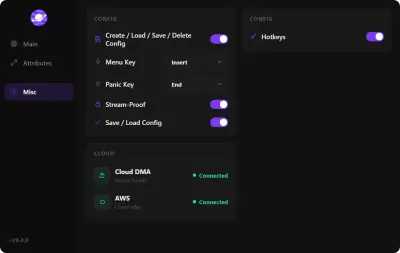
Create Config, Load Config, Save Config and Delete Config are listed. Together, they provide a basic way to manage software settings. The preview does not identify which settings are stored or whether files can be imported, shared or synchronized.
If you want to maintain separate configurations, ask whether the settings that matter to you are included. A saved software configuration should not be confused with saved player attributes or permanent unlocks. Those are separate persistence questions, explained in the attribute guide.
Capture visibility has a limited scope
Stream-proof mode is advertised to hide the ESP display and software menus from OBS, Streamlabs and most capture tools. That statement concerns what appears in a recording or stream. It does not confirm universal compatibility across capture modes, software versions, graphics systems or desktop recording methods.
Ask about your exact capture application and method before relying on the feature. It also does not establish undetectability by a game or protection from account penalties. Capture visibility and enforcement risk are different questions.
Menu keys and useful support details
The preview contains an INSERT keyboard label. Its exact behavior and whether the key can be changed are not explained. Do not assume a complete keyboard shortcut scheme or additional sliders from that label.
When requesting clarification, name the menu entry and include your game build, loader version and capture setup where relevant. For an error, describe the last successful step and the exact message. The troubleshooting guide helps organize those details without inventing an installation sequence.